Pairing a card with a playlist
An NFC card starts a playlist when your child places it on the MusicBox. Here is how to marry the two.
The part that surprises everyone: the MusicBox reads the card, not your phone. The app only tells the box that the next card it reads should be linked to this playlist.
- 01
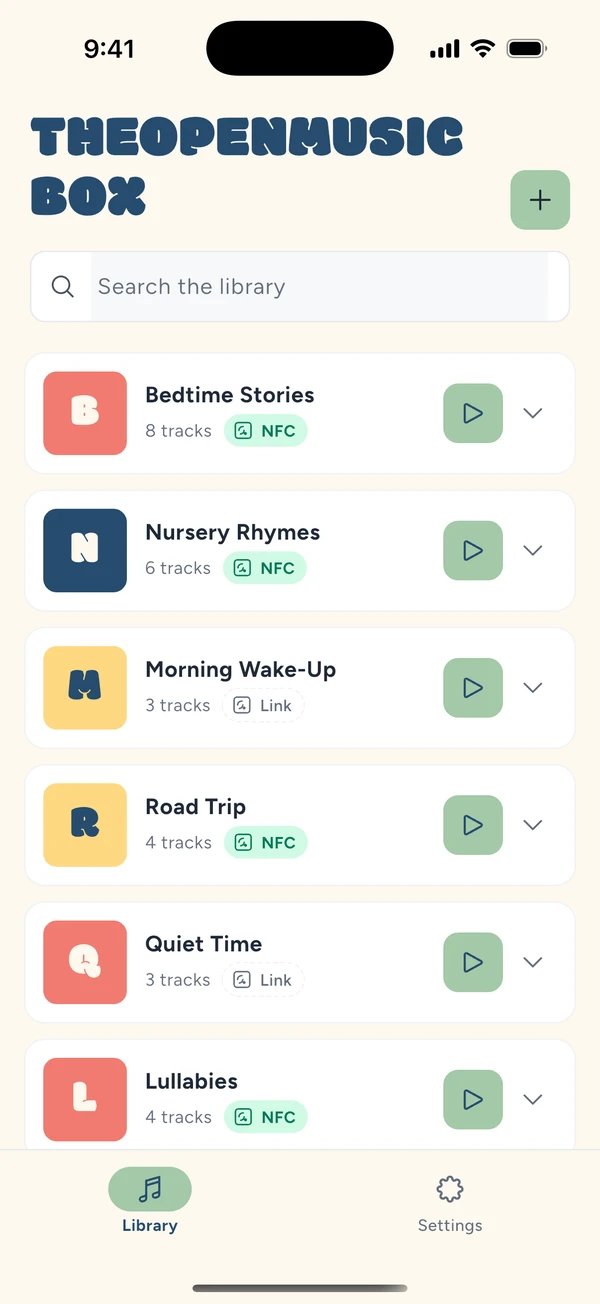
Open your library
The Library tab shows all your playlists. The ones that already have a card carry a badge; the others offer to link one.
- 02
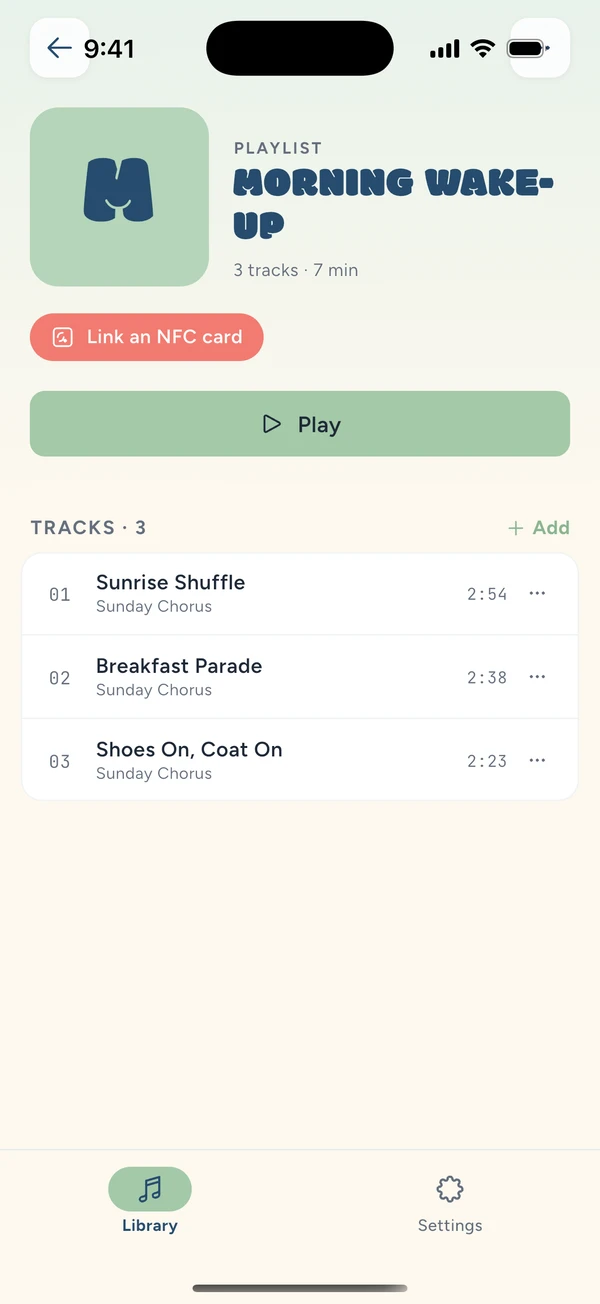
Pick the playlist
Open the one you want to pair. Under its title, a pill invites you to link a card.
- 03
Place the card on the MusicBox
The screen goes full screen and the reader starts pulsing: the box is waiting for a card. Place it flat on the MusicBox, not on the phone.
If nothing comes, the session ends on its own after a while. You can start it again.
- 04
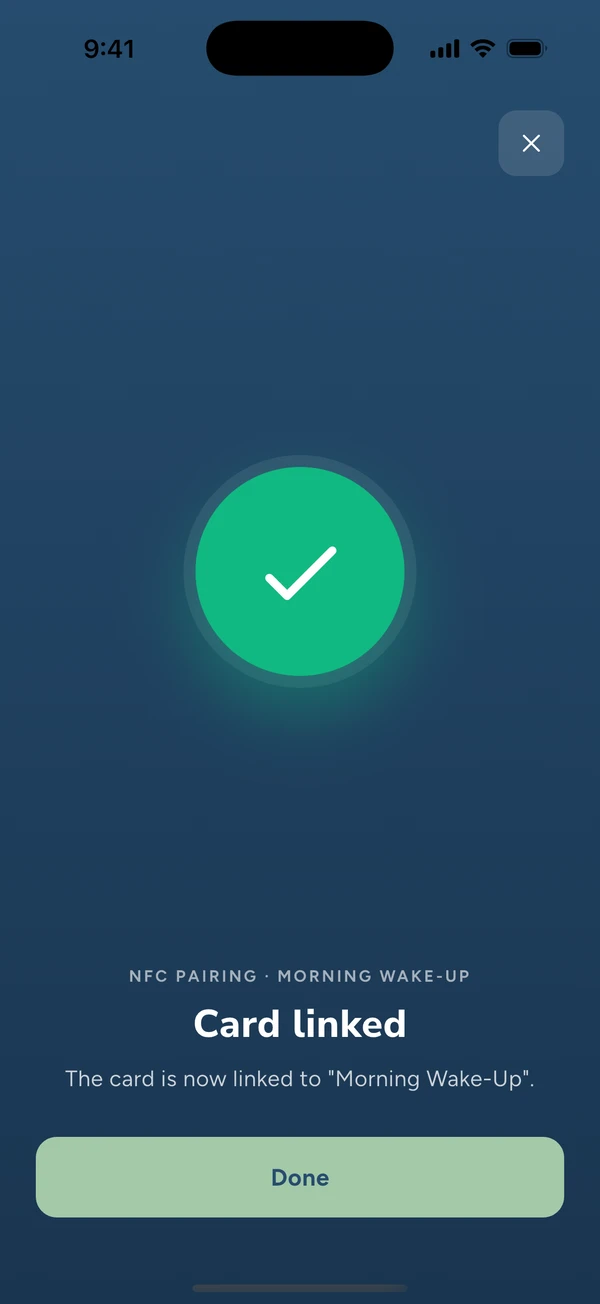
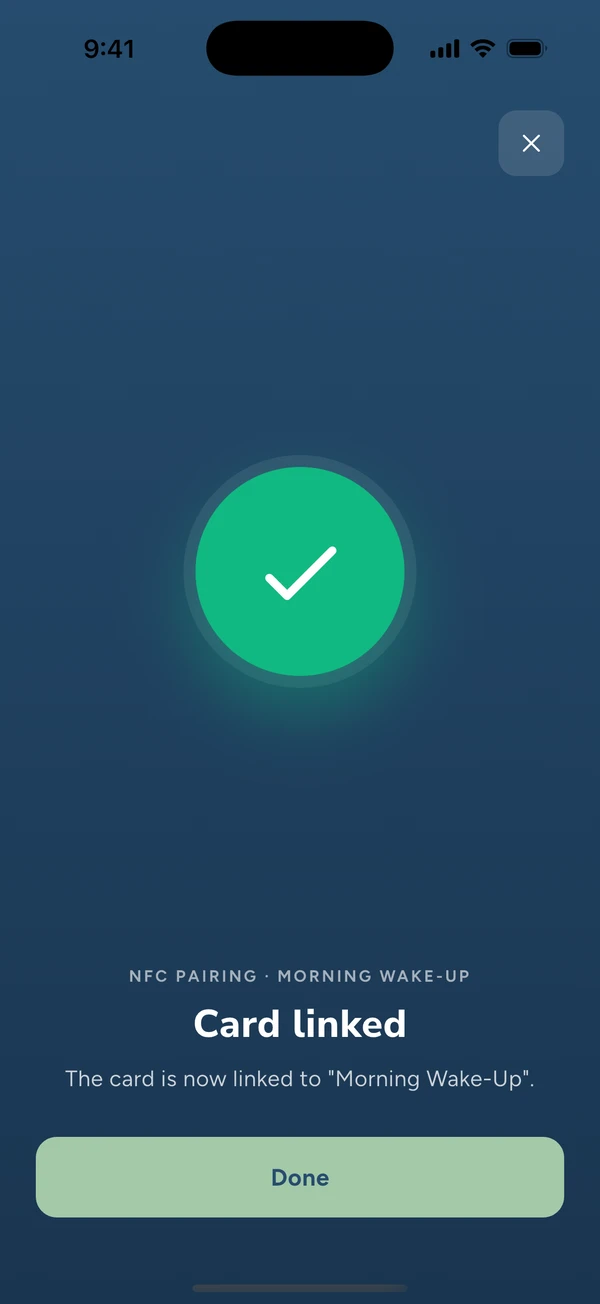
The card is linked
The card now belongs to this playlist. Placing it on the box will start playback.
- 05
Back on the playlist
The badge has replaced the invitation, and it names the card that was linked.
- 06
Replacing a lost or broken card
The playlist is not lost with the card. Open it again: the badge carries a Change button. You place a new card, it takes the old one's place, and the old one no longer triggers anything.
If the card you place is already linked to another playlist, the app says so and lets you choose between cancelling and replacing.
Stuck somewhere?
If a guide does not answer your question, come and ask it on Discord. We are there, and so are other parents.